# Azure App Registration

When you activate Mosaic, Microsoft Entra automatically registers Mosaic as an enterprise application in your tenant. This page describes what was created and how to verify it.

## What gets registered

Mosaic is published as a **multi-tenant Microsoft Entra application**. When your admin activates the subscription, Entra creates a service principal entry for Mosaic in your tenant.

The application is configured with **delegated permissions only** - Mosaic acts on behalf of the signed-in user via the **OAuth 2.0 On-Behalf-Of (OBO) flow**. Mosaic cannot access Power BI data the user themselves cannot see. Power BI Row-Level Security is preserved end-to-end.

The permissions requested cover:

* **Microsoft Entra ID** — sign-in and basic profile (`User.Read`, `openid`, `profile`, `email`)
* **Power BI Service** — read access to workspaces, datasets, reports, and dashboards the calling user has been granted on Power BI directly. No write permissions, no admin permissions.

## Verify the registration

1. Sign in to the [Azure Portal](https://portal.azure.com) as a Microsoft Entra administrator
2. Navigate to **Microsoft Entra ID → Enterprise applications**
3. Filter the list by **Mosaic**
4. Open the entry to inspect:
   * **Properties** - confirm the app is enabled for users to sign in
   * **Permissions** - confirm the requested permissions match what's listed above
   * **Sign-in logs** - useful when troubleshooting failed sign-ins later
   * **Users and groups** - control which users in your tenant can see Mosaic at all (separate from Mosaic's internal workspace access - see [User Access](/mosaic/user-access/accessing-mosaic.md))

## Tenant-wide admin consent

If your organisation requires admin consent for any third-party application, Microsoft Entra prompts for tenant-wide consent on first activation.

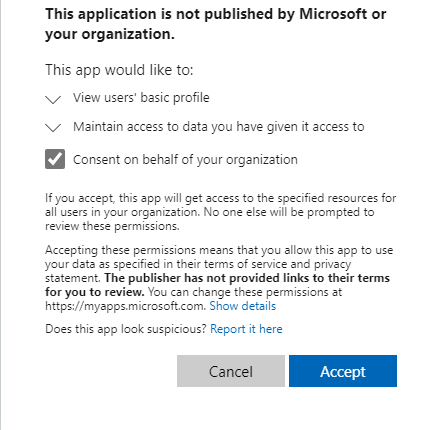
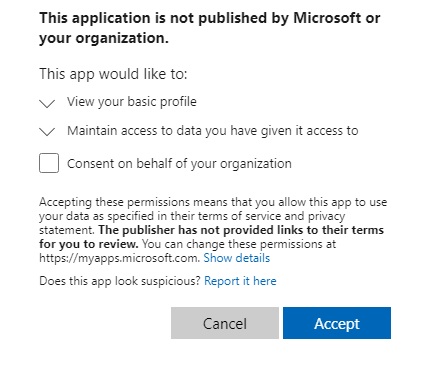
When the consent dialog opens, tick **"Consent on behalf of your organisation"** before clicking **Accept**. This grants the application's permissions for every user in your tenant in one step — individual users will no longer see consent prompts when they first sign in to Mosaic.

<figure><img src="/files/hYxhkduF3pac1EQpsBpT" alt=""><figcaption><p>Microsoft Entra admin consent dialog. Tick the highlighted checkbox to grant on behalf of the whole organisation.</p></figcaption></figure>

<figure><img src="/files/5JR1uqe5DjueXbWcBhpx" alt=""><figcaption><p>The same dialog with the consent checkbox ticked, ready to Accept.</p></figcaption></figure>

To re-grant or verify consent later:

1. Microsoft Entra ID → Enterprise applications → **Mosaic** → **Permissions**
2. Click **Grant admin consent for \[your organisation]**
3. Sign in as a tenant administrator and accept

## Restricting who can sign in

By default, every user in your tenant can attempt to sign in to Mosaic. Once they're in, [workspace roles](/mosaic/user-access/workspace-roles.md) determine what they can actually do. If you'd prefer to restrict who can even reach Mosaic - for example, only allowing a specific BI team - Microsoft Entra has a built-in feature for that:

1. Microsoft Entra ID → Enterprise applications → **Mosaic** → **Properties**
2. Set **Assignment required?** to **Yes**
3. Under **Users and groups**, assign the individual users or Microsoft Entra security groups that should be able to sign in

This is purely a Microsoft Entra feature - Mosaic itself doesn't read these groups. It just respects the access decision Entra hands it at sign-in time.

{% hint style="info" %}
**Microsoft Entra security group integration on the Mosaic side is on the roadmap.** Today, Mosaic's own workspace access is managed individually by email (see [Adding Members to a Workspace](/mosaic/user-access/adding-members.md)). We plan to add native Entra group → workspace role mapping in a future release. Let us know at `info@vizlake.com` if this is critical for your deployment.
{% endhint %}

## What's next

[Power BI Admin Portal Configurations →](/mosaic/get-started/powerbi-configuration/powerbi-admin-portal.md)


---

# Agent Instructions: Querying This Documentation

If you need additional information that is not directly available in this page, you can query the documentation dynamically by asking a question.

Perform an HTTP GET request on the current page URL with the `ask` query parameter:

```
GET https://docs.aidi.ai/mosaic/get-started/powerbi-configuration/azure-app-registration.md?ask=<question>
```

The question should be specific, self-contained, and written in natural language.
The response will contain a direct answer to the question and relevant excerpts and sources from the documentation.

Use this mechanism when the answer is not explicitly present in the current page, you need clarification or additional context, or you want to retrieve related documentation sections.