# Accessing Mosaic

Mosaic's access model is layered but uncomplicated. Microsoft Entra ID controls who can sign in. Workspaces control what they can see once they're in. Power BI controls what data they can read inside embedded content.

## Access model

<table><thead><tr><th width="170">Layer</th><th width="220">What it controls</th><th>How</th></tr></thead><tbody><tr><td><strong>Tenant</strong></td><td>Who can reach the app at all</td><td>Microsoft Entra ID. Only members of your Microsoft 365 tenant can sign in.</td></tr><tr><td><strong>System role</strong></td><td>Whether a user sees the Admin console</td><td><code>member</code> (default), <code>tenant_admin</code> (sees Admin), or <code>global_admin</code> </td></tr><tr><td><strong>Workspace</strong></td><td>Which shared workspaces a user can open and what they can do inside</td><td>Workspace owner adds members by email and assigns a role: <strong>Owner</strong>, <strong>Editor</strong>, or <strong>Viewer</strong>.</td></tr><tr><td><strong>Power BI</strong></td><td>Which Power BI rows / pages / reports a user actually sees inside an embed</td><td>The user's own Microsoft Entra identity is forwarded to Power BI via the On-Behalf-Of flow. Row-Level Security holds end-to-end. Mosaic never bypasses or caches Power BI access decisions.</td></tr></tbody></table>

## What happens on first sign-in

When a user opens Mosaic for the first time, a few things happen automatically:

{% stepper %}
{% step %}

#### Microsoft Entra signs them in

Mosaic redirects to Microsoft Entra ID. The user signs in with their Microsoft 365 work account - the same one they use for Power BI, Teams, and the rest of Microsoft 365.
{% endstep %}

{% step %}

#### Mosaic provisions their account

The first sign-in creates the user record in your Mosaic tenant.
{% endstep %}

{% step %}

#### A personal workspace is auto-created

Mosaic creates a **personal workspace** for the user, with a starter "Getting Started" page inside. Personal workspaces are private to the user — only they can edit content there.
{% endstep %}

{% step %}

#### They land on the home page

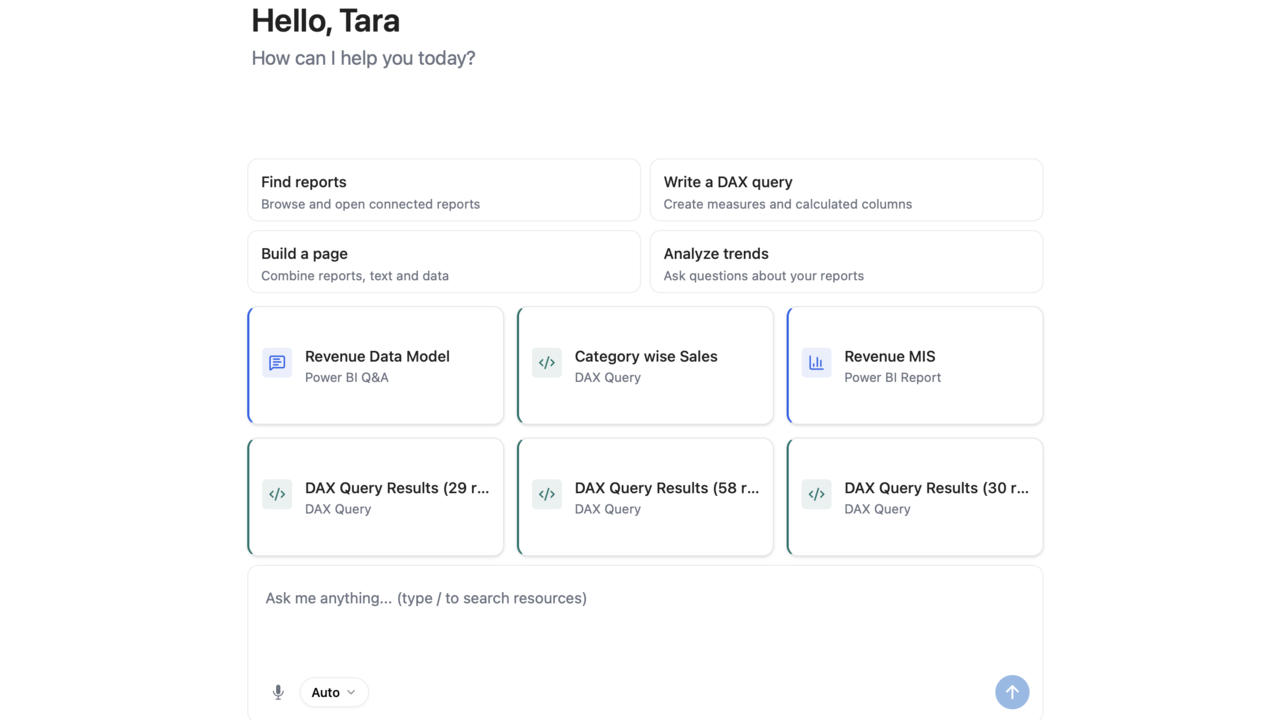
The user sees their personal workspace in the sidebar, the chat panel ready to take questions, and quick action pills for the common starting moves.

<figure><img src="/files/prsOZ3YNqvHrW3kTBmkB" alt=""><figcaption><p>Mosaic home — quick actions and recently-accessed resources.</p></figcaption></figure>
{% endstep %}
{% endstepper %}

That's it for first-time sign-in. They can immediately ask the chat questions, embed Power BI reports they have access to, and write pages.

## Sharing - moving from personal to team workspaces

A personal workspace covers solo work. To collaborate, someone needs to create a **shared workspace** and invite teammates by email.

{% stepper %}
{% step %}

#### Create a shared workspace

Any user can create a shared workspace (e.g., *FP\&A*, *Risk Reporting*, *Merchandising Analytics*). The creator becomes the workspace **Owner**.
{% endstep %}

{% step %}

#### Invite teammates by email

The Owner opens **Workspace settings → Members** and adds people by their work email, one at a time, with a role:

* **Editor** - can create and edit pages, run agents, embed Power BI, write DAX
* **Viewer** - read-only

Invitees must be members of your Microsoft 365 tenant — Mosaic does not support external guest collaboration today.

For more on what each role can do, see [Workspace Roles](/mosaic/user-access/workspace-roles.md).
{% endstep %}

{% step %}

#### Members sign in

Once added, the invitee sees the shared workspace in their sidebar the next time they sign in. Power BI access remains gated by Power BI's own access model — Mosaic shows them what they're allowed to see.
{% endstep %}
{% endstepper %}

{% hint style="info" %}
**No security group integration today.** Mosaic does not currently read Microsoft Entra security groups. Each member is added to a workspace individually by email. If you'd like group-based provisioning, that's on the Mosaic roadmap — let us know at `info@vizlake.com` so we can prioritise it.
{% endhint %}

## Tenant administrators

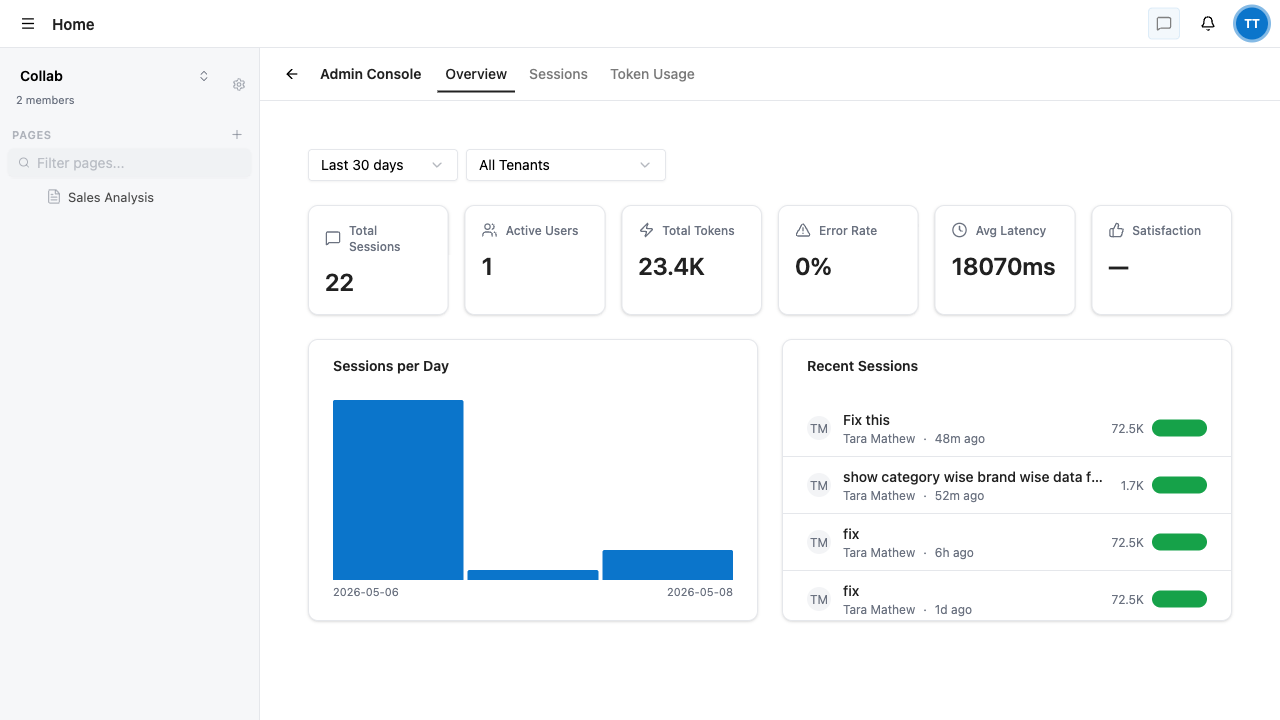
Tenant admins (`system_role = tenant_admin`) see the **Admin** entry in their user menu. They can review:

* Total AI sessions, active users, token usage, error rate, latency
* Recent AI sessions across the whole tenant
* Per-session timelines (every tool call, dataset accessed, model used)
* Token usage trends

<figure><img src="/files/QlVDQrqvELdJUPGDAddr" alt=""><figcaption><p>Admin Overview — tenant-wide AI metrics and recent sessions.</p></figcaption></figure>

Tenant admins do **not** manage workspaces from the Admin console — workspaces are owner-driven. Setting a user's system role is currently done by Vizlake on request, or by an existing global admin via the `scripts/admin.ts` CLI. UI-driven role management is on the roadmap.

## Access URL

Your Mosaic instance is at `https://mosaic.aidi.ai`. Customers with custom domain configurations may have a different URL - check with your Mosaic administrator if unsure.

## What's next

* [Adding Members to a Workspace](/mosaic/user-access/adding-members.md) - the email-invite flow
* [Workspace Roles](/mosaic/user-access/workspace-roles.md) - what each role can do
* [User Login](/mosaic/user-access/user-login.md) - first-sign-in walkthrough and troubleshooting


---

# Agent Instructions: Querying This Documentation

If you need additional information that is not directly available in this page, you can query the documentation dynamically by asking a question.

Perform an HTTP GET request on the current page URL with the `ask` query parameter:

```
GET https://docs.aidi.ai/mosaic/user-access/accessing-mosaic.md?ask=<question>
```

The question should be specific, self-contained, and written in natural language.
The response will contain a direct answer to the question and relevant excerpts and sources from the documentation.

Use this mechanism when the answer is not explicitly present in the current page, you need clarification or additional context, or you want to retrieve related documentation sections.